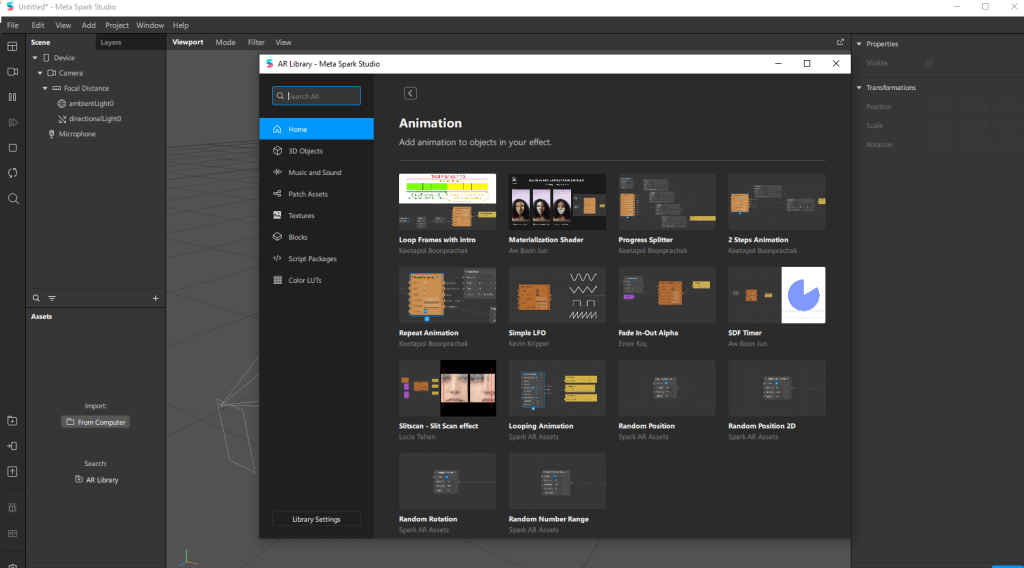
Let’s go over importing assets in meta spark studio because we all love to share our assets. We have an import button that lets you import assets with a shortcut of control + I or you can go to top left and click file->import. All the imported assets will go to the bottom left area that says “assets”. The assets box/panel also lets you import from a computer or search assets on the AR library. The easiest way is to simply drag and drop the assets in the assets box/panel or in the scene panel.
There are numerous assets you can import. You can import 2d/3d objects, audio, patch assets, textures, blocks, script packages, and color LUTs. LUT stands for lookup table and they are like a color filter, basically a color-grade-preset for your footage.
What you need to be wary of is the requirements and limitations of these assets that you are importing. For example, Meta spark sadly doesn’t support every 3D format and only accepts the following: FBX (filmbox), gITF (GL transmission format), COLLADE (collaborative design activity, file extension is .DAE which stands for digital asset exchange), and .ojb file which is a gemoetry definition file format. Recommended format is FBX. Improper format will result in either broken import or some features not being available. There are other items to consider as well such as the size of the assets.
 HansITAcademy
You must be logged in to post a comment.